- Published 20 Mar 2023
- Last Modified 18 Jun 2024
- 9 min
What is Computer Networking?
Discover all you need to know about computer networking and what it means.

Reviewed by Stephen Bettles, Technical Support Engineer (September 2022)
From the smart devices in our homes to all the laptops and devices in our offices, network connectivity is essential to modern life. So, if one element in the system breaks, or doesn’t work as effectively as it should, this can cause problems and delays in the rest of the network.
Knowing the correct equipment to set your network up with is just the starting point to establishing a reliable connection. Understanding key networking terminology will help you to troubleshoot any problems effectively and come up with the best solution.
This guide will explain exactly what all these terms mean, how they operate in a network, and what you can do to make sure your connection never fails.
What Does Networking Mean?
Computer networking is the process of establishing connections between several different devices. At the most basic level, computer networks are a series of computers, printers and routers that are linked together, creating a secure network, to share data without the need for any cabling or even needing to be in the same room.
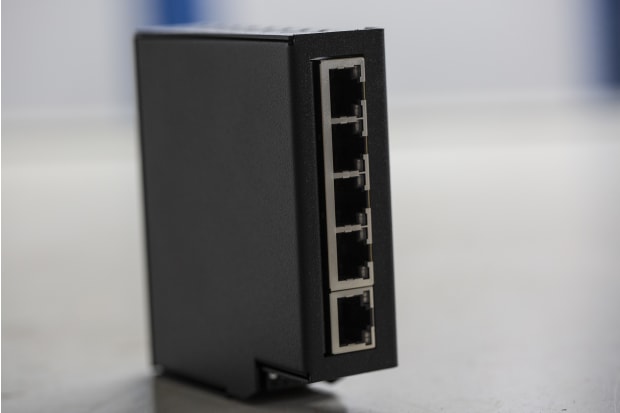
What is a Hub in Networking?
A hub is a device that sits at the centre of any network. They are simple, non-intelligent devices that allow data transfer between connected equipment as well as the detection and reporting back of any network errors.
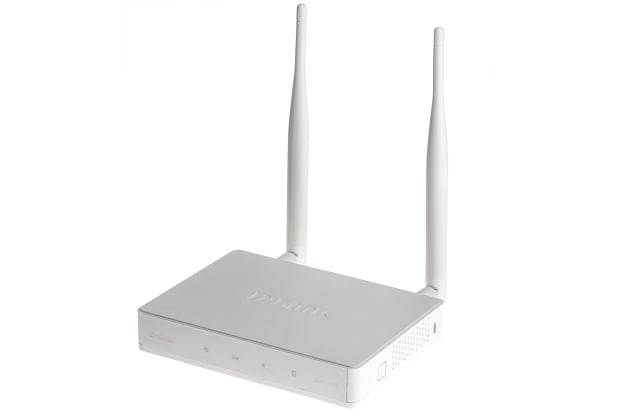
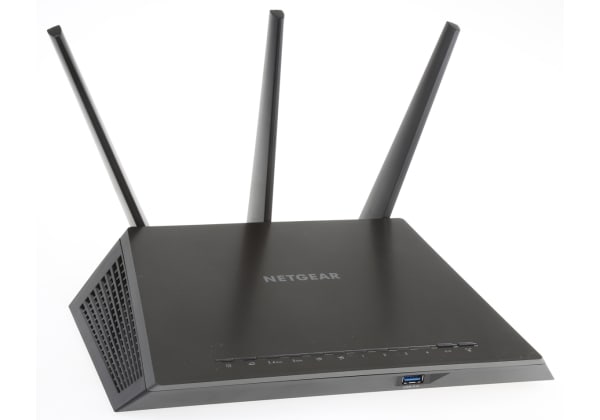
What is a Router in Networking?
Routers are centres for data exchanges between the local network and external networks. The data they transfer is put into packets that include several layers of information, such as identifying data including IP addresses and file sizes.
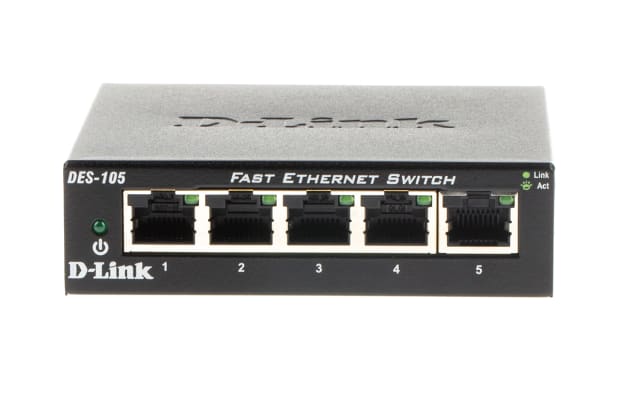
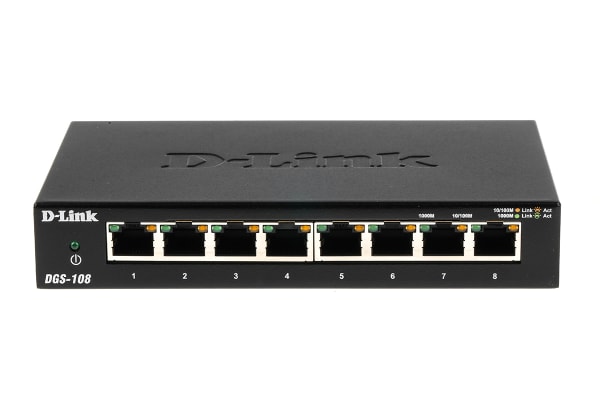
What is a Switch in Networking?
A switch connects several different devices within a network together. They send information to single devices through specific pathways on the local network (point to point), as opposed to a hub which transmits all received data to all connected devices. In large businesses where hundreds of computers are linked to a single network, switches can help to make the transfer of information more efficient.
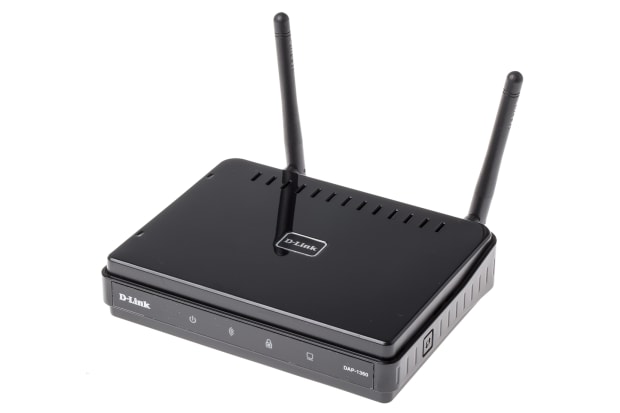
What is a Wireless Access Point in Networking?
A WAP (Wireless Access Point) is a device that creates a wireless local area network (WLAN), which is usually used in offices and large buildings. The access point will connect to a wired router, switch, or hub via Ethernet cable, and will provide a Wi-Fi connection to a specific area. These devices act as a wireless network range extender, allowing stronger and more stable internet coverage in a designated area.
Your typical wireless router in your home will already have an access point built into it. However, it will work with another access point for increased internet coverage over a larger area.
What is Connectivity in Networking?
Connectivity is a term that relates to the way each element of a network works with each other. In short, it describes the way each device, piece of hardware and software is connected. Networking and connectivity work hand in hand because without good levels of connectivity, a network cannot operate effectively or efficiently.
How to Test Network Connectivity
If a network isn’t working as efficiently as it should or an administrator wants to check the health of a network, then they might want to run a connectivity test to see if there are problems with its stability. These tests are tools, programmes or coded commands that run across the network to check whether each part of this system is working correctly or not. The most common types include:
- PINGs: these tests send data packets to target destinations, such as devices or servers and detect whether these packets have been delivered successfully or not
- Tracerts or traceroutes: known as tracerts on Windows and traceroutes on other systems, these tests send out data packets and send back information about how this travels through each stage of the network. This level of detail can help administrators identify exactly where the connectivity problems in the network are i.e. if a specific router isn’t functioning correctly
How to Troubleshoot Network Connectivity
If devices are having problems connecting efficiently to the network, the internet or each other, then troubleshooting the issue is your first step to resolving it. Methodologically doing this will help you get to the root of the problem quickly. Here are some steps you can follow to troubleshoot network connectivity effectively:
- Collect information: from running tests to replicating the problem and asking device users about the problems they’ve been experiencing, gathering as much information as possible about your network’s connectivity will help you make an informed judgement on potential issues
- Create and test a theory: once you’ve collected all the information together, you can then develop a theory that you can test to see if this is the case. For example, if you think a switch isn’t working correctly, replacing it with another one can help you to figure out if this is the case or not
- Develop a solution: once you’ve tested each of your theories, you’ll have a full picture of the issues on your network and be able to build a plan of action to resolve them. Once you’ve implemented this, keeping note of your process and the solutions you’ve put in place will help you and your team be fully informed should this or a similar problem arise in the future
Indeed, to prevent problems from occurring on the network, having a thorough and regular testing procedure in place will help you pre-emptively identify and fix any issues before they cause problems for network users.
How to Fix Router Connection Problems
If you’re having problems with devices connecting to a router or the router not functioning as efficiently as it should, there are a few steps you can take to try and resolve the problem:
- Turn the router off and on again: if your router hasn’t had a reboot in a while, then restarting it may help to re-establish the connection. If you’re having to do this regularly, then you might want to consider replacing it
- Thoroughly check the router: look at the physical device and see if the cables are connected securely, if the router is hot, or if there are any lights which can help you to diagnose the problem
- See if the signal is a problem: if you can’t connect your device remotely, then try plugging it in via an ethernet cable. This can indicate if there is any interference from physical or wireless blockers. If you already connect to your router via cable, then replacing the cable could help resolve the problem
- Run diagnostics: from calling your service provider to see if there are any problems to running the router’s diagnostic tools or testing the network’s connectivity, running some diagnostics can help you to pinpoint any problems with the router itself or other parts of the network
- Reset the router: returning the router to its factory settings can help to resolve problems you can’t identify after a thorough troubleshooting process. However, this should be your last resort, as you will have to set up the router on the network again
If you go through a thorough troubleshooting process and still can’t get to the bottom of the problem, then replacing your router or running wider network connectivity tests should help you to get your connection back up and running.
FAQs
A network protocol is a coded rulebook that sets out how the devices on the network should communicate with each other by breaking down complex processes into smaller and more specific steps each device must complete to fulfil the task. This means any device, whatever type of hardware or software they use, has a common language that it can use to communicate and operate securely alongside other computers on the network.
Related Guides

Be the first to know about our latest products and offers
Email address
The personal information you provide to us when signing up to this mailing list will be processed in line with the Privacy Policy